
Alright. After I showed you how to make your XP look like Vista, some people asked me to post a guide to making your XP look like Mac OSX. Leopard, to be precise. There are two ways to accomplish the OSX look: the easy way - with a transformation pack, and the hard way - manually. I will, of course, show you how to do this the easy way, but if it for some reason doesn’t work for you, email me or comment and I’ll teach you to do it all manually. So here’s how it’s done the easy way:
Step 1: Get a transformation pack.
The best Mac OSX transformation pack for Windows XP is probablyFlyakiteOSX. The creator’s website itself is worth the visit, but if it doesn’t load in your browser, get Firefox, and here’s a Download Link.
Step 2: Install
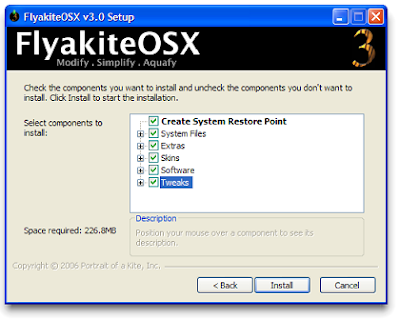
Run the installer and when you get to the following screen, MAKE SURE you check the box Create System Restore Point. The transformation pack will change a lot of system files and settings and although you should be able to uninstall easily later, you might find yourself in a mess if something goes wrong. This way you can always do a System Restore. Check any other options you want and you’re ready!
Step 3: Enjoy!
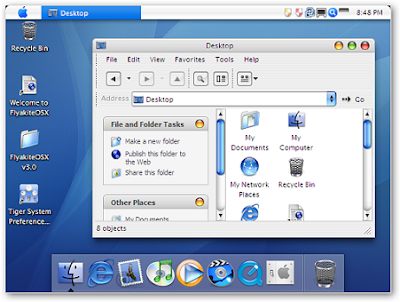
After the restart, you should be able to convince all, but the most die-hard Mac lovers that you have an OSX. This is what your desktop should look like now:
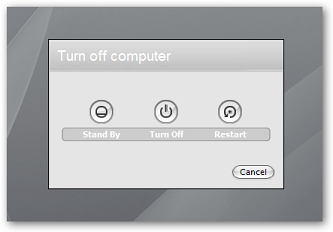
This also leaves you a nice Mac OSX shutdown screen:
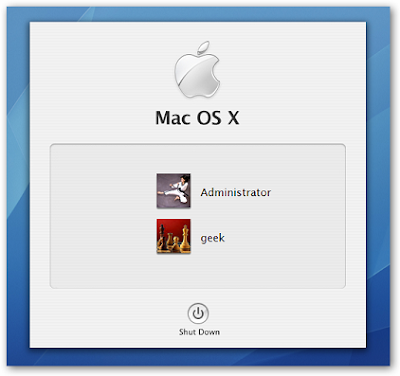
…And a Mac OSX logon screen:
Note: The transformation pack might trigger your anti-virus protection as it changes some system files, but this is probably a false positive. Be careful though, and remember to back up!
Step 1: Get a transformation pack.
The best Mac OSX transformation pack for Windows XP is probablyFlyakiteOSX. The creator’s website itself is worth the visit, but if it doesn’t load in your browser, get Firefox, and here’s a Download Link.
Step 2: Install
Run the installer and when you get to the following screen, MAKE SURE you check the box Create System Restore Point. The transformation pack will change a lot of system files and settings and although you should be able to uninstall easily later, you might find yourself in a mess if something goes wrong. This way you can always do a System Restore. Check any other options you want and you’re ready!

Step 3: Enjoy!
After the restart, you should be able to convince all, but the most die-hard Mac lovers that you have an OSX. This is what your desktop should look like now:

This also leaves you a nice Mac OSX shutdown screen:

…And a Mac OSX logon screen:

Note: The transformation pack might trigger your anti-virus protection as it changes some system files, but this is probably a false positive. Be careful though, and remember to back up!


 Posts
Posts


Blog Archive